

Community post
Tutorial : Get PWA score over 90 in Google Lighthouse using Ionic

In this Tutorial I want share about how to get PWA score over 90 in Google Lighthouse using Ionic Framework. Before we go, it better to us to get fundamental what are we do..
What is PWA
When we browse some sites using our mobile phone, there will be many problem such as white screen because we have bad connection, always loading again if we want go to another page, etc. Because of that, we are often forced to install native apps in our mobile phone. But the new problem comes, our mobile phone will have many Apps are installed, reduce our storage and sometimes reduce our mobile phone performs too. There's why PWA (Progressive Web Apps) appear. PWA comes to resolve this issue. PWA will runs like a native Apps.
According to Google,
Progressive Web Apps are user experiences that have the reach of the web, and are:
Reliable - Load instantly and never show the downasaur, even in uncertain network conditions.
Fast - Respond quickly to user interactions with silky smooth animations and no janky scrolling.
Engaging - Feel like a natural app on the device, with an immersive user experience.
This new level of quality allows Progressive Web Apps to earn a place on the user's home screen.
So, with PWA we want our user comfort with our sites although they have slow connection.
What is Ionic
Ionic is a framework to help us make Web and mobile hybrid application. Ionic based on Web Technology such as HTML, Javascript, and CSS. The result of the system is SPA, Single Page Application. What is the different Ionic and Angular?? Actually, In the core system, Ionic using Angular Framework but Ionic get optimized to make us easier to build mobile hybrid application. Here the official website for ionic [https://ionicframework.com/].
Let's Play
In this tutorial, we will do some steps, there are:
- Preparation
- Install and configure Ionic
- Test
- Optimize
Preparation
Before we go further, we need to install NPM (Node Packet Manager) in our PC. I'm using Windows in here. We can download and Install it in here. It better to us to choose LTS version.

Lighthouse is a tools for measurement PWA system. So, Install it in Google Chrome. Download Lighthouse in [here](https://chrome.google.com/webstore/detail/lighthouse/blipmdconlkpinefehnmjammfjpmpbjk). Click Add to Chrome

### Install and Configure Ionic If you don't have Ionic installed in your system, please install Ionic Globaly. Open your terminal or Command Promt and type: > $ sudo npm install -g ionic cordova
Ionic Framework have started template, we will use Blank started template for our PWA project. > $ sudo ionic start ionic-pwa blank --v2
Choose/type "No" and Enter for each questions.
Let's Go to our project folder and serve our project.
$ cd ionic-pwa
$ ionic serve
Ionic will automated Open your default browser. In default configuration, Ionic just a site without PWA configuration, but Ionic have easy configuration to PWA.
### 3. Test In here, we will test our system with Google Lighthouse. Let's click Lighthouse in top-left of our Google Chrome and Click Generate Report. Lighthouse will do some tests to our Web Apps and generate report to us.

The first result will be bad, we just get like the image above. But don't worry, let's configure our Ionic to get good score in Lighthouse.
Optimize
To optimize, we need to know what will we need to optimize. If we look in our Lighthouse result, we will see "Does not register a service worker". What is Service Worker. It's hard to explain it now. But the point is service worker will pre-cache all of our static assets ensuring that your app loads reliably and fast under any network condition. So all of our CSS, JS and images file will be in our browser cache. The result is our Web Apps can run offline:)
Here step by step to optimize our ionic to support PWA.
1. Enable Service worker
First we must enable our service worker. Ionic has made the Service worker system for us, so we just enable or disable the configuration to get the Service worker system. To enable it, open file index.html in folder project ionic-pwa/src. In line 25 until 31, un-comment the script and save the file.

2. Notify user if they Javascript Disable
All of our Configuration will be useless if our user disable their Javascript in their browser. We can notify our user to make their enable their Javascript. In the same file index.html, add this file after tag body( )
 <h1>You don’t have javascript enabled.</h1>
 <p>Please enable it to get the full experience.</p>
 </noscript>
###### 3. Configure our Apps name It's now really important, but we will need it in future if we want using PWA. We can configure it in manifest.json in folder ionic-pwa/src.

###### 4. Optimize Web Performance Lighthouse will analyze our Web Performance. We need our site run faster in browser. We can minify all our Javascript to get smallest bundle. In Angular development, it called AoT/uglify. Let's deploy our ionic to get smallest bundle of file and run faster in browser. Firstly, We must enable production build to get smallest bundle. Open app.module.ts in folder ionic-pwa/src/app. Add the script to be like this:
After that, In your terminal/Command Promt type this:
npm run ionic:build -- --prod
Now, we have Single Page Application (SPA). We can upload it to our Server. If we look again to Lighthouse result, there's a result say "Does not redirect HTTP traffic to HTTPS". Of course PWA need HTTPS connection. But don't worry, we can get the hosting with HTTPS connection with Firebase. Go to [here](https://firebase.google.com/). Click "Get Started", Add Project, Full fill the Form and click "add project". Go to Develop and click "Hosting". You will see how to Hosting in Firebase.

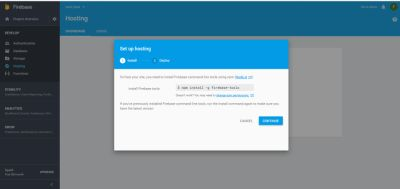
In your terminal, go to ionic-pwa folder and type:
$ npm install -g firebase-tools
Login to your Firebase Account > $ firebase login
If the result is error. You can do this > $ firebase login --interactive
Initiate your project: > $ firebase init
Choose Hosting and choose ionic-pwa as our project. 
Before we deploy it, we must configure firebase.json. Open it and add this script:
 {
    "hosting":{
        "public": "www"
    }
}
After that, let's DEPLOY
$firebase deploy
After deploy completed, go to the link we get. 
Generate our Lighthouse again and And here the result :

That's it, we get
Conclusion
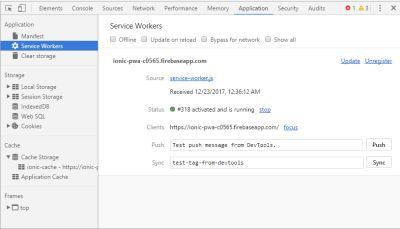
Ionic give us simple configuration to make our Web App as PWA. Before we finish this tutorial, let's see how Service Workers works. In Google chrome, Open Developer Tools (Ctrl+Shift+I). Choose Tabs Application. In there you will see manifest, Service workers, Clear Storage. Look to Service worker and you will see
Service Workers status activated and running. You can un-connect your WiFi or Checklist Offline in Service Workers. Refresh our Website and it still right??
Look around to Cache Storage, there will be all of our Javascript, CSS, Font, etc.

There's still so many thing's about PWA. Sorry about my limit of my capability to explain about PWA.
Thank you for reading:)
respectfully,
cakra
Posted on Utopian.io - Rewarding Open Source Contributors
Replies (7)
Your contribution cannot be approved yet.
See the Utopian Rules. Please edit your contribution to reapply for approval.
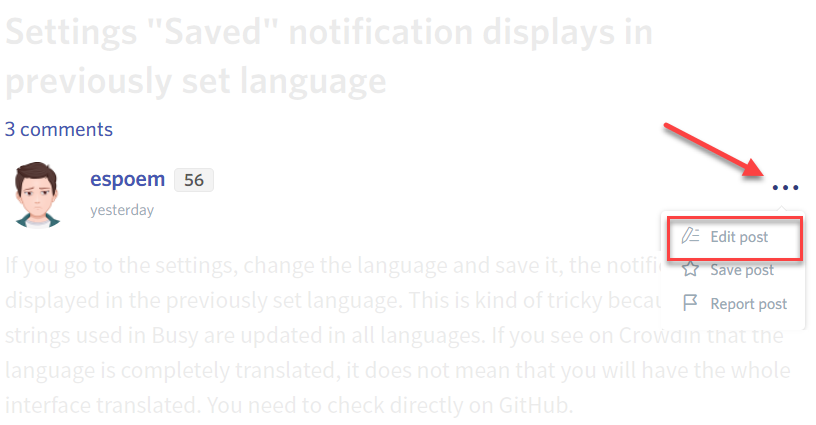
You may edit your post here, as shown below:
You can contact us on Discord.
[utopian-moderator]
Hi @codingdefined
I have edited my post.
I put the source of images in my bottom-left of my Images.
Can you review it again??
Should I give Image Courtesy for each print screen image??
Thank you
Thank you for the contribution. It has been approved. A great tutorial, we would love to see more great tutorial from you.
You can contact us on Discord.
[utopian-moderator]
Thank you @codingdefined :)
Great!
Semangatt
Hey @cakra I am @utopian-io. I have just upvoted you!
Achievements
Suggestions
Get Noticed!
Community-Driven Witness!
I am the first and only Steem Community-Driven Witness. Participate on Discord. Lets GROW TOGETHER!
Up-vote this comment to grow my power and help Open Source contributions like this one. Want to chat? Join me on Discord https://discord.gg/Pc8HG9x