If you know how to get in touch with Linux, it is always easier to manage services based on it rather than Windows.
to get to that point today I am going to show you some commands that can be useful at its time. this way I review thing too which is good for me as well :)
I will focus on text processing commands for now
1. basename
basename is very useful when you are writing a script and you need to seperate the file name from the path, in this case you can easyl type 'basename /path/to/file' and it will return the file name.

2.comm
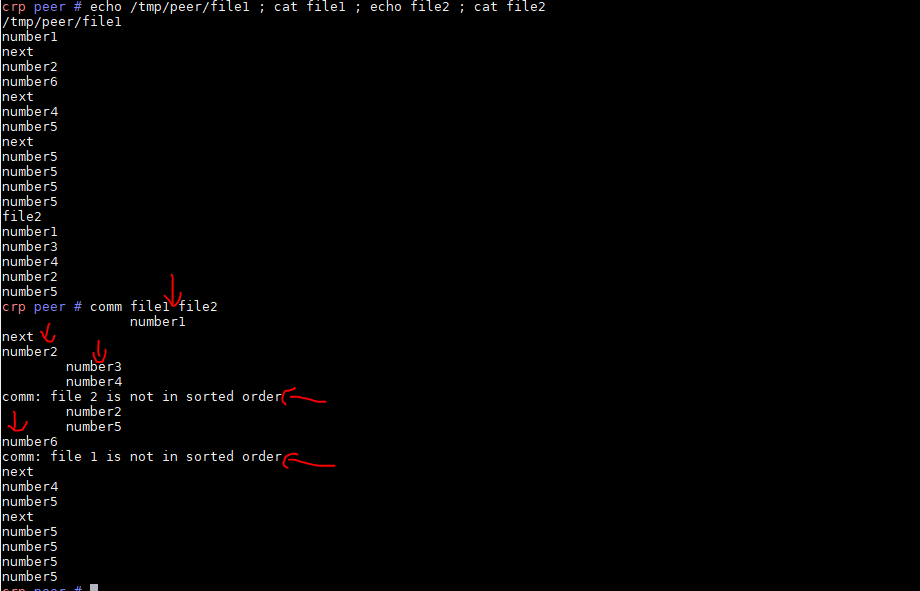
with comm command you can compare two files and their columns. in this example it says both have number1, file1 has number 2, file 2 has number3 and number4 and it goes like this. give it a try and play with it, it could be in use sometimes specially if you want to work with financial data
### 3. csplit
While working on the command line in Linux, you may need to split a file into multiple parts, in that case csplit is what you are looking for
in this example I am splitting the file from line 2 and I am repeating this pattern 3 times

I can do other things as well, like giving a prefix to the created files , etc...
### 4. diff
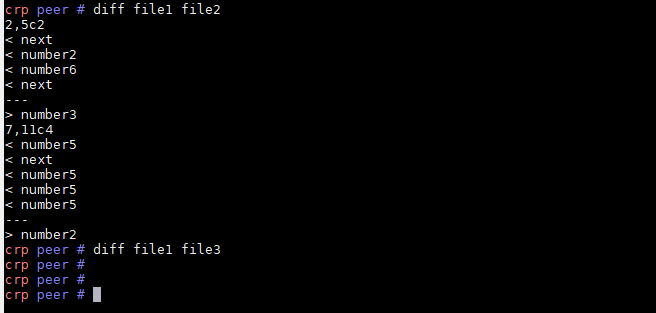
imagine you are copying a very important file in other directory and you wanna make sure the file is the right one, by command 'diff' you can easily make sure your filed don't differ
diff file1 file2
### 5. dirname
direname is opposite of basename, meaning it will return path to the file
dirname /tmp/peer/file1

### 6. fmt
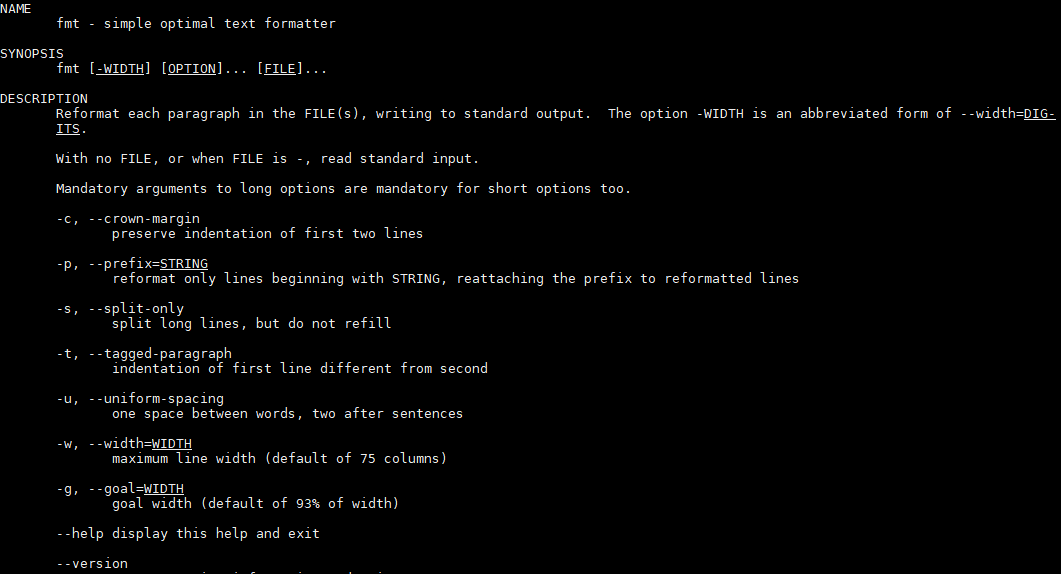
with fmt you can make some texts more readable, like putting them in one line, changing the length of line, etc
fmt filename
you can see different options here
### 7. Head
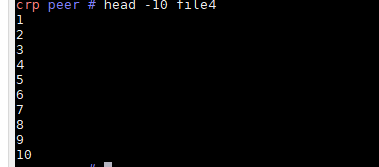
with head you can choose to show how many lines, bytes, etc of file
head -10 file4 #will show 10 first lines of file 4
8. tail
with tail you can choose to show how many lines, bytes, etc of file
tail -10 file4 #will show 10 last lines of file 4
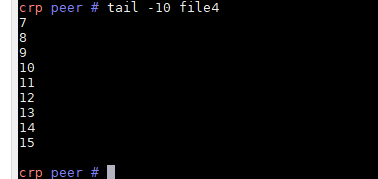
also tail -f will show changes in file online and you can grep it to show specific string
tail -f file4 | grep "error in file"

### 9. wc
with this command you can get the number of lines, words, letters of a file
wc -l file4 # will give you number of lines in file4

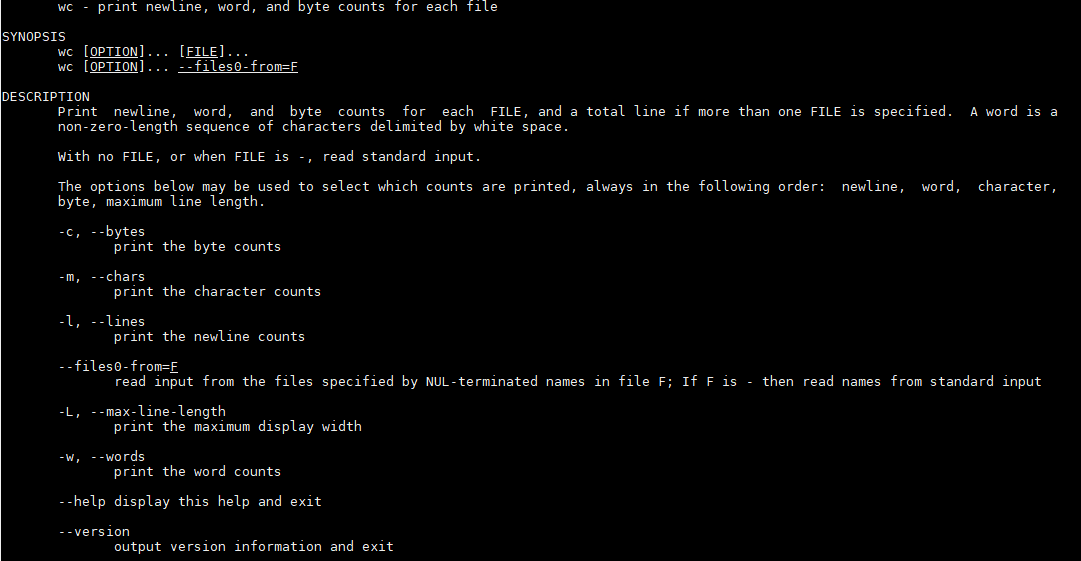
some other options of wc command
###
I hope you find it useful, in next post I will show you guys some other commands that I find useful
###
thanks for your support

Replies (2)
glad to see you are active again, long time no see :)
yes, been busy lately , But try to be more active :)