

Community post
How to Install React Native in Windows for Android Development
Hi, in this tutorial I will show you how to install react native on a windows computer for android development.
What Will I Learn?
- Install react native package with node.js
- Create and run react native apps.
Requirements
- Java (JRE and JDK).
- Node.js
- Python2
- Android Studio
Difficulty
- Basic
Get Started
Okay, to get started first we need to download and install certain application before we get straight to react native.
Install Java
Android requires both JRE (Java Runtime Environment) and JDK (Java Development Kit) to work. You can download java here https://java.com/en/download/. After you have download and install both JRE and JDK, you need to setup PATH for JDK. In my case I name it JAVA_HOME.

Install Android Studio
Okay, why we need Android Studio when we are going to use React Native to develop android apps? Because React Native require Android Studio gradle to sync and build the project. To install Android Studio you can go here https://developer.android.com/studio/index.html.
Install Python2
Why do we need python? Because react native build system was based on Python2. You can download it here https://www.python.org/downloads/. Make sure to download Python2 not Python3.
Install Node.js
We will need node.js package manager called npm to install react native package. Go ahead to https://nodejs.org/en/ to download. The node.js version I'm using in this tutorial is version 8.9.4 LTS. After you have installed node.js, you need to make sure it is installed properly. You can check it by opening the command prompt and type node -v. If it shows you the node.js version, then you are good to go.

Install React Native
Now it's time to install React Native. We can install react native package by typing npm install -g react-native-cli from the command line.

Alright now you have successfully installed React Native on Windows. But let's try to create an app and run to see if it is working.
Create React Native Apps
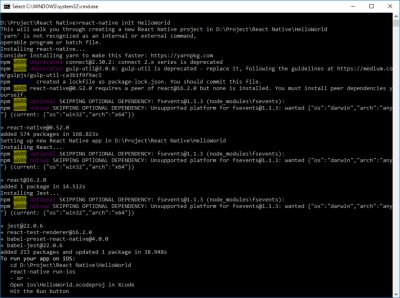
To create react native apps, you can do it with typing react-native init HelloWorld. In my case I named it HelloWorld but you can name it whatever you like.
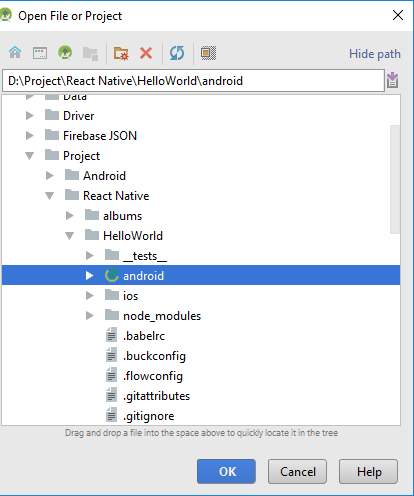
Okay now you have create your project, now we need to open the project from Android Studio. Open the android folder inside project directory, in my case it is D:/Project/React Native/HelloWorld/android.
If Android Studio shows an error "Failed to sync with gradle", don't panic just click sync and let Android Studio handle everyting. Once sync is finished, it's time to create a virtual device. You can either use a real android device or create virtual device. In this tutorial I will just create a virtual device. You can create a virtual device using AVD Manager inside Android Studio. Then run the virtual device.

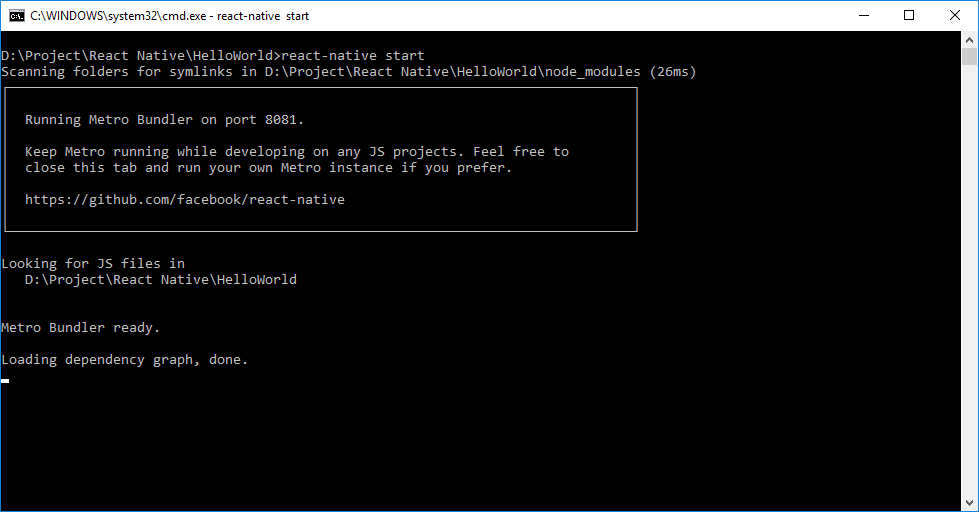
We are almost done. Now open the command line and run react native by typing react-native start.
And now we will run the apps by typing react-native run-android inside the project directory. Once it finish building the project, it will show up directly in your virtual device.

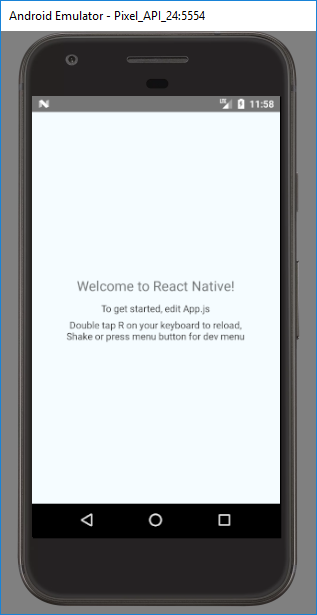
Congratulations! You have just create your first Android apps with React Native.
If you want to dive deeper into react native, you can check out the documentation below.
Documentation
https://github.com/facebook/react-native
Posted on Utopian.io - Rewarding Open Source Contributors
Replies (7)
Smoga approve :)
Amin bang @kakilasak.
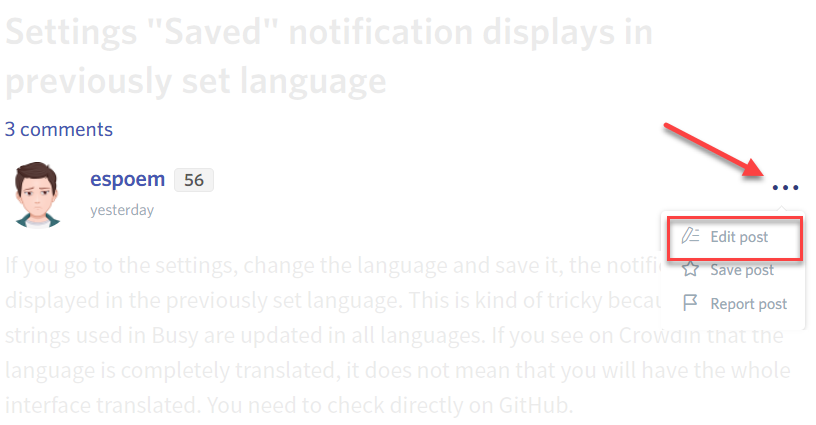
Your contribution cannot be approved yet. See the Utopian Rules. Please edit your contribution to reapply for approval.
You may edit your post here, as shown below:
You can contact us on Discord.
[utopian-moderator]
The repository has been updated. Thanks @sametceylan.
Thank you for the contribution. It has been approved.
You can contact us on Discord.
[utopian-moderator]
Hey @sametceylan, I just gave you a tip for your hard work on moderation. Upvote this comment to support the utopian moderators and increase your future rewards!
Hey @steven.tjg I am @utopian-io. I have just upvoted you!
Achievements
Suggestions
Get Noticed!
Community-Driven Witness!
I am the first and only Steem Community-Driven Witness. Participate on Discord. Lets GROW TOGETHER!
Up-vote this comment to grow my power and help Open Source contributions like this one. Want to chat? Join me on Discord https://discord.gg/Pc8HG9x